Quick Start
Convert your first file
- Install EDI Converter and add your license.
- Open EDI Converter from the desktop shortcut.
- Next to EDI files or folder, click Browse… and select an EDI file. For a first run, you can download the file from our 835 example.
- Choose an Output folder, such as
C:\EDI\Converted. Leave Output file blank to name the results after the input file. - Select CSV, Excel, or JSON under Format. Start with Excel if you want to review the results in a spreadsheet.
- Click Convert. Wait for Conversion complete in the Progress area, then open the output folder to view your files.
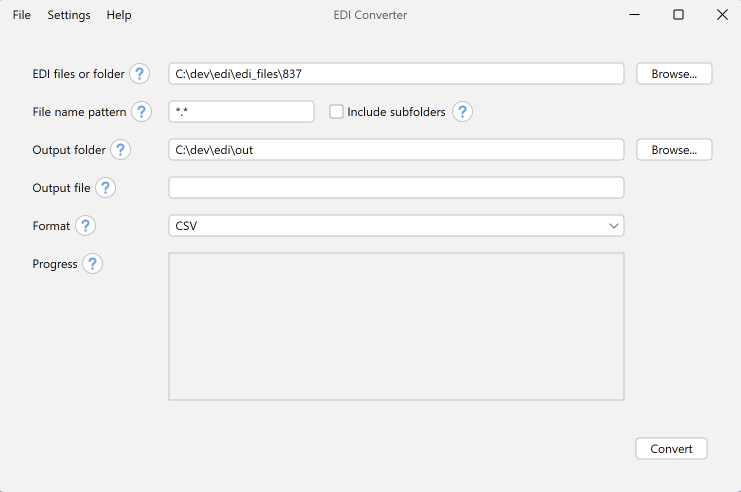
The EDI Converter running on Windows with an 837 input folder selected for CSV conversion.
A CSV conversion can produce several related files. For example, an 835 can produce claims, service lines, remittances, and provider-adjustment tables. This is expected; the selected CSV layout determines how claims and service lines are organized.
See Output Examples to compare layouts, or the User Guide to convert a folder or combine files.